Sunday, October 19, 2008

Convert e-mail address into codes

Yep it is similar to scramble your e-mail address but in this case it will ,convert e-mail address
into hex codes or html entries. Here's is a quick note from the http://www.katpatuka.org website

"This form takes the email address and converts it into the hex code for each character. It then creates a mailto: tag composed of these codes.

This page will output the HTML mailto: tag containing those codes which you will need to copy and put in your page where you want you address to appear.

Someone using a normal browser will see your address and be able to mail you via a standard mailto: link, however any e-mail harvesting agents will merely see something like %74%72%65%65%74%6D%65%40%68%6F%74%6D%61%69%6C%2E%63%6F%6D instead of a real email address.

Of course, someone could write an email harvester that could convert this all back to your email address. However the likelihood of that is remote."


So what are you wating for ,Obfuscate your email now click here to visit the site.

HAPPY ENCODING . Drop me a comment if you do like it
postpage

Scramble your e-mail address


Encrypt your e-mail address with this powerful free[ofcourse free tool] by Amanda of blogger bustter This will scramble your e-mail address preventing spambots to harvest your e-mail address.

Here's is what Amanda says

" Spam bots harvest email addresses from web sites and blogs. This email scrambler is designed to obfuscate your email address using Javascript, which ensures only Javascript enabled browsers can read the email address, thus protecting it from email harvesters.
To use this email scrambler, simply enter your email address in the box below and type the link you would like to display to your visitors (eg: "Email Me"). When you click the "Scramble Email" button, you will be presented with javascript code which you can copy and paste into your blog template where you would like the email link to be displayed (eg: in an HTML/Javascript widget in your sidebar). "

Visit e-mail scramble tool on blogger bustter to scramble your e-mail address :) enjoy

Blogger hacks and tips

BLOGGER HACKS AND TIPS FROM ALL AROUND THE WEB.....
COMPILED BY ACHUTE.

[INFO:This article contains a list of most of the blogger Hacks and Tips from around the web.

I din't want to write all those article in my site because I din't want to copy others blogger articles and I can't invent all the tips and hacks so
I decided to summon all the [most popular ] blogger hacks and tips tricks in this post----thanks for reading this long info]

This post is updated frequently,So do not forget to bookmark us.


Here is a list of Blogger tips and hacks :-) .


1..Basic Of Blogger Hacks -This article contains some important basic for any newbies like backing up template how to edit the template and much more

2. adding post a comment box below the post on blogger. - this article shows you how to add post a comment box below each post making the user easy to post comment.

this trick shows you how to add read more or continue reading in the home page.

4. A label cloud for blogger users. this trick shows you how to create a label cloud like myne [see the sidebar] for your blog spot blog.

5.How To Add Digg Button To Blog Post - "Adding Digg Button is really interesting and very useful for blogger also as it increase traffic of yours blogs and make yours blogs populars among readers ,
so to add Dig buttons to blogger you need to follow certain below easy steps."

6.Wrap ad sense text ads on left and right side or in between blog post of blogger.com
-"Are You a Blogger, Are you interested in increasing yours adsense revenue by
improving the CTR of adsense of your blog that is by inserting adsense codes with in every post ,If Yes then today i will tell you how to wrap adsense code in between yours
blogpost For this you must have yours adsense account and yours Blogger account."

7. adding the top of the page icon -As you might have noticed a top of the page icon floating over the page at the left hand side. If you want to create that then follow this
tutorial by Blogger bustter.

8.Hiding blogger nav bar - [most of the people know but if you don't then read this]

9.customizing block quote - what to write read this article to get a clear picture on how to customize block quotes

10.Calendar widget for blogger - do you need a explanation.

11.How to add three columns to your footer section See the footer section of this website ,did you notice it contains 3 columns,If you want to create 3 columns for your blogger blog too then read this.
MORE HACKS AND TIPS COMING UP.
Enjoy and drop a comment if i have missed your site or a site which contains some hacks :-0 enjoy.

Saturday, October 18, 2008

Formating a computer.

So,you want to format your computer and don't know what the hell to do than just be cool and read on ;-) .This article with some images will help you on formating your computer.

SO LETS PROCEED FIRST CHECK THE REQUIREMENTS.

SOFTWARE REQUIREMENTS

While instaling windows.
1.Windows Xp [bootable C.D]

After installing windows.
1.Sound Driver.
2.Graphics Driver [If you have a Graphic card ]
3.Mother board drive [some times it is required]

Hardware requirements.

1.Decent U.P.S [Who knows when the light will go off]
2.This article printed.

After checking the requirements lets proceed to the steps.

Steps:

BACK UP!!!!!

Back up your important files on the Net,C.D,D.V.D,Pendrives or any other media.
after backing up restart your computer.

FORMATING
When you see a black screen writen something in white  

press F11 To go to the Bootmenu.
and from the option select cd/dvd after putting the windows xp cd or dvd.
And press space bar to continue when it shows Press any key.
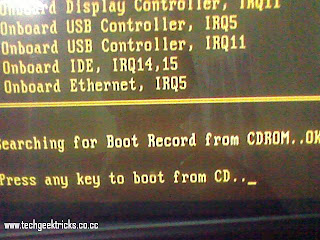
press any keto boot from cd.

AFTER THAT

a Blank screen with a banner at the bottom of the screen will be displayed. Window setup will be written at the top.
and bellow setup is loading files will be written.
Like this
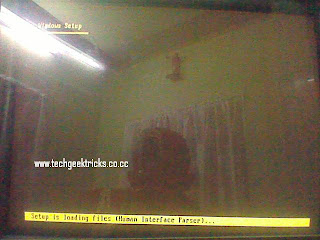

Wait for some time.

After that

an Option screen will be shown
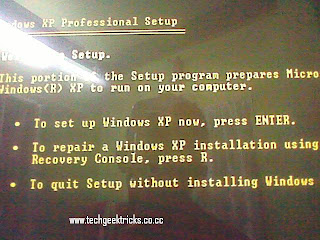


Press enter to continue with the instalistian

And press F8 TO agree with the lisence aggrement.[I have never read it.Have you.OOPS  :-D ]

Now press ESC to not repair and install a fresh new xp.

now select the drive in which you have the currently installed windows xp commonly c: drive And press d

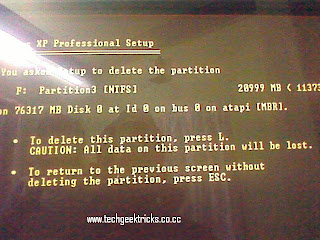
Screen showing "You have asked setup to delete a partion will be shown .now press L.

And again You will return to the dashboard (I call it dashboard ,Inspired from blogger)

now go to the drive you have just unpartioned and press c and press enter.

after that on dashboard press enter highlighting C: drive
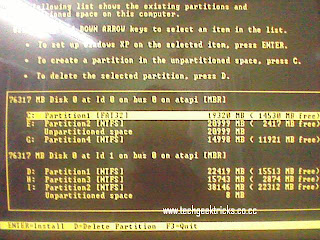
and from the list select the type you want [ntfs or fat]
I always leave it default

and then setup will format
Setup is formatting will be shown then after 100% Setup is copying files...and other things will be shown.
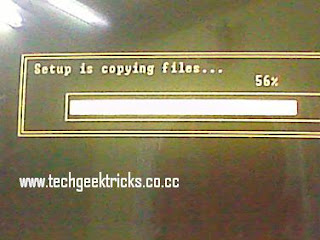

then your computer will reboot[restart] don't do any thing,then in gui[Graphical user interference ] winddows will
install after installing windows will reboot don't do anything and you will see the welcome screen.[do i need to explain more ]
any problem leave a comment.WE will try my best to solve your problems.

Thursday, October 16, 2008

Hinding folders with dos


Hinding folders with dos using the attrib command

It is similar to this process,The only difference is that this we are doing in CUI {or dos mode}
it is simple.

Starting dos
1. Start
2.Run
3.Type "cmd" and press enter

Inside dos

Suppose you have a folder name techgeektricks in G drive than here is what you should do.
type G: {and press enter} {or instead of G type the drive name in which you have the folder to hidden}
then type attrib +h techgeektricks  {note techgeektricks is the name of the folder if you want to hide files then type .}

Your file or folder is hidden now to remove the hidding property.

type attrib -h techgeektricks


For help type attrib/?

Monday, October 13, 2008

Use Google to perform Unit Conversion,Book Search,Stock Quotes and many more:

Stock Quotes

To see current market data for a given company or fund, type the ticker symbol into the search box. On the results page, you can click the link to see more data from Google Finance.

Example: CSCO

Book Search

If you’re looking for results from Google Book Search,
you can enter the name of the author or book title into the search box
and google will return any book content google has as part of your normal web results.
You can click through on the record to view more detailed info about that author or title.

Example: Henry Wadsworth Longfellow

Unit Conversion

You can use Google to convert between many different units of measurement of height, weight, and mass among others.
Just enter your desired conversion into the search box and it will do the rest.

Example: 10.5 cm in inches

Synonym Search
If you want to search not only for your search term but also for its synonyms,
place the tilde sign (~) immediately in front of your search term.

Example: ~fast food

For more Help Please visit Google official site
CLICK HERE.

Use Google to Find out weather,time,Area Code and more..

Use Google to find out :

WEATHER

To find out the weather for many U.S. and worldwide cities,
type "weather" followed by the city and state, U.S. zip code, or city and country.

eg: weather San Francisco

Try it

TIME

To see the time in many cities around the world,
type in "time" and the name of the city.

eg: time new delhi


Maps


Looking for a map?
Type in the name or U.S. zip code of a location and the word "map" and we’ll return a map of that location.
Clicking on the map will take you to a larger version on Google Maps.

Example: Seattle map

Area Code


To see the geographical location for any U.S. telephone area code,
just type the three-digit area code into the Google search box and hit the Enter key or click the Google Search button.

Example: 650