Showing posts with label newbibes. Show all posts

Friday, December 19, 2008

Send secure Email the simplest way

Have you ever wanted to send secure e-mail but dint know how to do so or use encryption keys. logo

Then say bye bye to the older methods of sending encrypted e-mail.Welcome Send.™. It doesn't require the use of  encryption keys and other software's just a web browser will do.

Here is what they say about there service.

It's not that there aren't other secure methods to send an email… It's just that they're too hard to use.

We think everyone should be able to send a secure email…and we all have better things to do than spend an afternoon installing and configuring an encryption solution.

Before Send.™, the process of sending a secure email was complex as illustrated by the chart on the generic_flowright: 

But why subject yourself (and your recipients) to such an arduous process? And what happens if your recipients want you to use a different solution or the solution you used isn't compatible with their system?
Send.™ is Different…
We don't require you to maintain encryption keys.
Though we think the public/private key method works, we also think it was created for geek's and technicians.

Send.™ is compatible with all email solutions including web mail.
Anyone with a browser and an Internet connection can use Send.™ and, unlike other available solutions, Send.™ requires no software downloads or additional system configuration.

The service is easy to use.
We created Send.™ because the previous process for sending secure messages was too difficult. Our studies suggest that people will not send encrypted messages if the process is even marginally more difficult than normal. Simply put…security is important, but cannot impede productivity.

Send.™ is the only free and easy way to send a secure message.

You can read more here @about


If you are a new to all these then There must be certain questions floating in your head?

What is wrong with regular email?

With very few exceptions, email is both sent and stored in plain-text. This creates the potential of your email being read by a laptop thief, a hacker, or even a nosey IT professional. Sure, not every email you send contains sensitive information - and we don't encourage you to encrypt all of your email - but almost all of us from time to time need to send information that we need to make sure only the intended recipient is able to read… and that's where Send.™ comes in handy.


Why should I encrypt my email?

Anytime your email contains sensitive information your message should be encrypted. Some examples are:
Passwords / Social Security numbers
Financial Documents / Tax Returns
Proprietary Information
Designs & Strategic Plans
Wills & Testamentary Documents
Bank Account numbers, etc.
Additionally, local and federal governments are enacting consumer protection laws that require encrypted email communication with clients and customers. Some professional industries are specifically prohibited by law from sending confidential information over unencrypted email (Banks, Physicians, etc.)


Who can read the message once it is encrypted?

Once encrypted, only one person can read the message - your intended recipient. Even after the message is received by the intended recipient, the message is still secure. No other user of Send.™ can read the message. If the message is forwarded to another email address (or intercepted in transit) - only the original intended recipient can read it.


To send an e-mail click here

To see more Frequently Asked Questions click here

To see there about me page click here

Thursday, December 18, 2008

Hide your important images with dos

So you have a image precious image stored up in your computer and want to hide it from others then you might just like our way of hiding files using the dos only.


Requirements.

A image file.
A good text editor (notepad will do)
Dos


What it does


This trick will convert an image file into an not understandable file See the image for more details
beforehiding afterhiding

           BEFORE HIDING                                                       AFTER HIDING

How to do it.

If you have read my article of hiding your documents using notepad then,this trick will be easy to follow.In this article I will be showing you,how to hide images in a txt format or any other format and make the image undetectable. Are you ready - Let's begin.

first move your images to c drive.[Create a backup of your image i will not be responsible if it is lost.]
Click on start then on run then type cmd
now type cd\ [press enter]
now take note of your image name and extension lets say techgeektricks.jpj
now under cmd - command prompt
type 

ren techgeektricks.jpj techgeektricksjpj.txt           

[press enter]

Ren command on command prompt is used for renaming the files.Here techgeektricks in the file name
and jpj/txt is it's extension. I have named the out put file as  techgeektricksjpj so that while converting it back to image format it becomes easy.

Now go to the location where your image was located and try to view it.You will notice that the image has changed into a text file.

To get your image back is simple just go to ms dos prompt go to c drive an then type ren techgeektricksjpj.txt techgeektricks.jpj


Where to use it?

You can use it to send images to your friends computer hiding it from spying eyes or you can just keep it in your  computer I bet no one will ever find out what is inside those text files unless you tell them it is an image or so.


Extra notes.

You can change the .txt extension to .mp3 or any other extension.

If you change the code or fiddle with the code which you get when the image is changed to .txt extension then the image will be  lost forever.So be careful

If you want to send the image hidden as .txt file then you must attach the file itself if you give your friend the code (i.e .txt code) It will not work.

Saturday, October 18, 2008

Formating a computer.

So,you want to format your computer and don't know what the hell to do than just be cool and read on ;-) .This article with some images will help you on formating your computer.

SO LETS PROCEED FIRST CHECK THE REQUIREMENTS.

SOFTWARE REQUIREMENTS

While instaling windows.
1.Windows Xp [bootable C.D]

After installing windows.
1.Sound Driver.
2.Graphics Driver [If you have a Graphic card ]
3.Mother board drive [some times it is required]

Hardware requirements.

1.Decent U.P.S [Who knows when the light will go off]
2.This article printed.

After checking the requirements lets proceed to the steps.

Steps:

BACK UP!!!!!

Back up your important files on the Net,C.D,D.V.D,Pendrives or any other media.
after backing up restart your computer.

FORMATING
When you see a black screen writen something in white  

press F11 To go to the Bootmenu.
and from the option select cd/dvd after putting the windows xp cd or dvd.
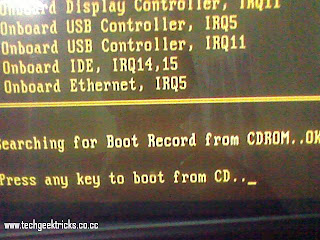
And press space bar to continue when it shows Press any key.

press any key to boot from cd.

AFTER THAT

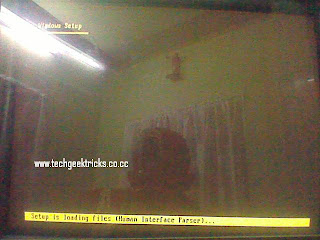
a Blank screen with a banner at the bottom of the screen will be displayed. Window setup will be written at the top.
and bellow setup is loading files will be written.
Like this


Wait for some time.

After that

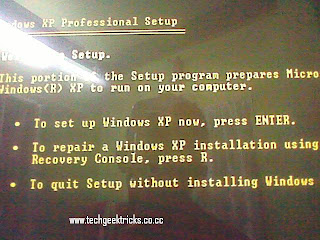
an Option screen will be shown


Press enter to continue with the instalistian

And press F8 TO agree with the lisence aggrement.[I have never read it.Have you.OOPS  :-D ]

Now press ESC to not repair and install a fresh new xp.

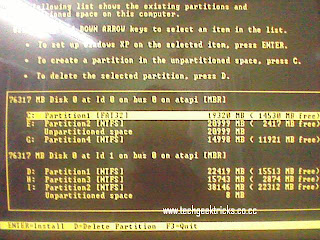
now select the drive in which you have the currently installed windows xp commonly c: drive And press d

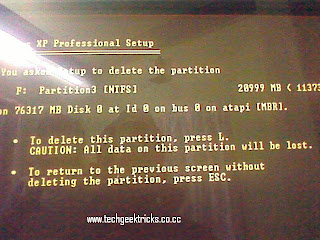
Screen showing "You have asked setup to delete a partion will be shown .now press L.

And again You will return to the dashboard (I call it dashboard ,Inspired from blogger)

now go to the drive you have just unpartioned and press c and press enter.

after that on dashboard press enter highlighting C: drive

and from the list select the type you want [ntfs or fat]
I always leave it default

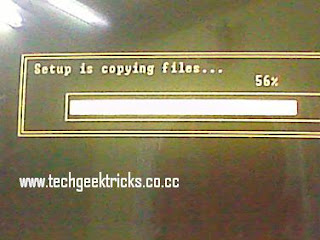
and then setup will format
Setup is formatting will be shown then after 100% Setup is copying files...and other things will be shown.


then your computer will reboot[restart] don't do any thing,then in gui[Graphical user interference ] winddows will
install after installing windows will reboot don't do anything and you will see the welcome screen.[do i need to explain more ]
any problem leave a comment.WE will try my best to solve your problems.

Monday, October 6, 2008

Hide files and folders

Want to hide folders,files?read futher

This article is also for a newbibe so if you are bit geek than don't read this article.


Hiding a folder.
Steps
  • Create a folder name it techgeektricks. (don't tell me how!and name it techgeektricks afterwards u can change)
  • Right click on it and click on properties.
  • Properties dilog box will appear.
  • click on hidden under attributes.
  • click on ok and then apply.
now just referesh your folder is gone.
So u wanna Get it back
there are two ways for this:
First way using address bar
[note:- suppose you have created techgeektricks folder under c:/ directiory(if not do it now it will confuse you afterwards if you are a total newbibe)]

so it is under c:/ directory]
Now on the address bar type


C:\techgeektricks


Now you are under your hidden folder

now do what ever you want ,put whatever you want.


second method:- Folder options


[note:-you have created techgeektricks folder under c: directiory]


  • now click on tools.
  • then on folder options
  • click on view tab
  • now see the list under advance settings
  • Hidden files and folders
  • then click on Show hidden files and folders
  • click on apply and then ok.
  • your folder is displayed.

[TIP: make sure you disable it after doing your job]

Advantage of first method over second method:-
in the first medthod you can directly access the folder without changing the properties on the whole. The second method you have
to change the properties which will affect all the folders and files so i you forget to disable everyone can see it. so I Would suggest you to go for the first method.

HOW TO HIDE FILES

Just follow the method of hiding folders on files and it will also be hidden;


tech geek tricks -HACK_THE_WORLD_BEFORE_THE_WORLD_HACKS_YOU


Wednesday, October 1, 2008

Internet and blogging for NewBibes

Note:
If you are a frequent user and know how to use internet make blogs or site than don't read this article this article is for the
NEWBIBE TO INTERNET.


Creating a Blog or web site.

Q>What is a Website?(Some have asked me so i am writing this down )

Ans> A website is a collection of Web pages
, images, videos or other things..which is hosted on web servers,
usually accessible via the Internet.
web sites address are
www.the name of the site.what is an e-mail(Some people get confused with website and email so i am writing this down)
ans>An e-mail is a electronic message ,It is like a letter it the real life.
Email address syntax is name@.(extension like .com and so on)


Q>How do i create a blog or/site like yours?(COMMON QUESTION FOR ME)
ans> Steps for crating a blog Like ours.
First go to www.blogger.com (a service of google)
then First register for a google account by clicking on the signup button.
Then fill in the deatails and Give a name to your blog/site
and then give the web address it is usually yourname.blogspot.com
then do the needful of clicking ok and putting in the other details.
Now your blog will be created.
(I will soon post a video of doing this don't worry,Just be in contact with this Site)

Q>MORE QUESTIONS
ANS > ask me we will do our best to help you.
Please leave a comment(Now Don't Ask Me on How to post a comment? :-D )